Growth · 6 minute read
How to move your newsletter list from beehiiv, Kit, Substack or Mailchimp
Export your subscribers, keep only people who are still opted in, and import them without re-mailing anyone who left. Steps for four platforms.
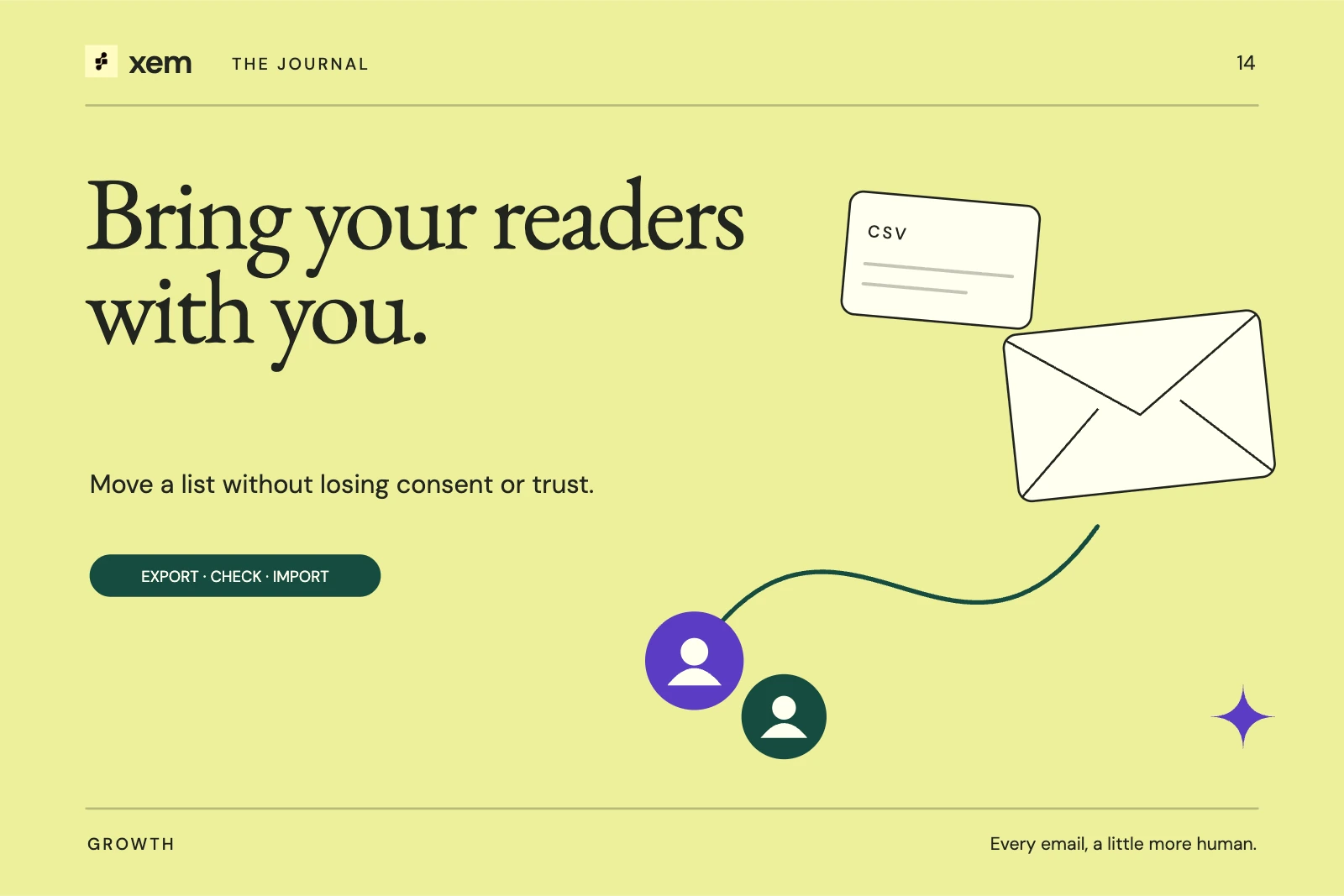
To move a newsletter list, export your subscribers as a CSV from the old platform, remove everyone who is no longer subscribed, and import the rest into the new tool. The part people get wrong is the middle step. An export can include unsubscribed, bounced and inactive people, and mailing them again breaks their trust and can break the law where you operate.
This guide covers the export for beehiiv, Kit, Substack and Mailchimp as of October 2026, what each file contains, and what to check before your first send from the new platform.
What should you export?
Export everyone, then filter. Partial exports are the most common reason a migrated list looks smaller than expected, and you cannot filter out people you never downloaded.
Keep three things from the old platform:
- The subscriber file, with a status column if the platform offers one.
- Your archive of past issues, if you want them on the web after the move.
- A note of how people signed up: the forms, the promise on them, and whether you used double opt-in. You may need this if anyone asks how you got their address.
Keep the original file unchanged as a backup. Make a copy for cleaning.
How do you export from beehiiv?
In beehiiv, go to Settings → Publication → Export Data and choose Export Subscribers (Quick) or (Full). Both list each subscriber's email, status and tier. Full adds custom fields and statistics but takes longer. beehiiv emails you when the file is ready.
The status column matters. beehiiv marks people you unsubscribe as Inactive rather than deleting them, so an export of everyone includes them.
How do you export from Kit?
In Kit, open Subscribers, use the Status filter to choose Confirmed, select every subscriber (click Select all, not just the checkbox for the current page), then use the bulk action to Export. Kit emails a download link, and the link expires after five days.
Kit's export includes first name, email, created date, status, tags, location and custom fields. If the file is short, the usual cause is that only one page of subscribers was selected.
How do you export from Substack?
On your Substack Subscribers page, scroll to All subscribers, open the three-dot menu and choose Export. You can download all columns or only the visible ones. Choose all columns so you keep the fields that show whether email is still enabled.
Substack's help centre notes that the export does not include subscriber names. Plan your greetings accordingly: a "Hi {{first_name}}" line will be blank for everyone imported from Substack until readers fill it in.
Paid subscriptions are a separate migration. Moving them involves your Stripe account, not the CSV, so check Substack's own guidance before you switch billing.
How do you export from Mailchimp?
In Mailchimp, open your audience, view all contacts and export the audience. Mailchimp may give you a ZIP file containing separate CSV files for subscribed, unsubscribed, non-subscribed and cleaned contacts. Exports stay available in your account for 30 days.
Import only the subscribed file. The unsubscribed file is a record of people who asked you to stop. The cleaned file holds addresses that bounced. Neither belongs in a new sending list.
Which rows should you leave out?
Leave out anyone who is not clearly subscribed. In practice that means removing rows where:
- the status is unsubscribed, inactive, cleaned, bounced, complained or pending confirmation;
- an "email disabled" or "unsubscribed" field says yes, or an unsubscribed date is filled in;
- the email address is not valid;
- the address already appeared earlier in the file.
"Pending" deserves a second look. Those people started to sign up but never confirmed. Mailing them as if they had confirmed undoes the point of double opt-in.
How does Xem handle an import?
Xem's contact import accepts a CSV or pasted rows and recognises exports from beehiiv, Substack, Mailchimp, Ghost and Kit by their columns. Before anything is saved, it shows how many rows will be imported and how many will be left out, with the reason for each group: unsubscribed, a non-subscribed status, an invalid address or a duplicate.
It maps common column names to contact fields automatically, including email, first and last name, company, phone and location. If a file has a single "name" column, Xem splits it into first and last name. If you upload a Mailchimp file of unsubscribed or cleaned contacts by mistake, the import refuses it.
Tags and custom fields are not carried over by the import today. If you rely on tags for segments, rebuild those segments in Xem after the import.
What should you check before the first send?
Send a short, honest first email from the new platform. Tell readers you have moved, that nothing else changes, and how to unsubscribe. A clear first message reduces spam complaints from people who do not recognise the new sender.
Then check the basics:
- Authenticate your sending domain with SPF, DKIM and DMARC before you send. Gmail and Yahoo require authentication for bulk senders. See email deliverability in 2026.
- Keep the same from name and address if you can. Recognition matters more than design in the first send.
- Check your provider's limits. A new Amazon SES account starts in a sandbox and must request production access before it can mail a real list.
- Watch the first sends. Look at bounces and complaints after each one, not only opens.
Common questions
Will my subscribers need to sign up again?
No. People who opted in to your newsletter can be moved with you, because the consent is to hear from you, not from a particular tool. Tell them about the move in your first send.
Can I bring my past issues?
Usually yes, but separately from the subscriber file. beehiiv can export post content, and most platforms let you copy issues. In Xem, sent editions can be published as a public web archive.
What about paid subscribers?
Paid subscriptions live with your payment processor, typically Stripe, and need their own plan. Move free readers first and handle paid subscribers with care.
Sources and further reading
- beehiiv: How to export subscribers and managing subscribers, checked October 30, 2026.
- Kit: How to export subscribers, updated September 4, 2026.
- Substack: How do I export my email list?, checked October 30, 2026.
- Mailchimp: View or export your contacts, checked October 30, 2026.
- Google: Email sender guidelines.
- Next: what it costs to send a newsletter through Amazon SES.
Written with AI assistance and checked against the linked sources. Examples are illustrative. Our editorial approach